
You need a website, a phone that gets answered, WhatsApp that replies, and a CRM that keeps itself up to date. At Imora, that all lives in one continuous system instead of eight separate subscriptions. This guide walks through it start to finish: where to begin, which product to turn on when, how to set up a webshop, appointments, DMs and voice agents, and which tricks in scale.imora.nl save you time right away. We'll tell you honestly what already works and what's still in progress.
The idea: four layers that build on each other
The Solutions page shows the order we follow with almost every client. Layer one is a website or webshop that sells. Layer two connects that webshop to your CRM or sales platform, so an order instantly updates stock, customer and invoice. Layer three is the AI agents that call, message and book. Layer four is marketing: email, newsletter and social from the same source. You don't have to do everything at once. In fact, you shouldn't. Pick the layer where the most is currently slipping through the cracks and build from there.
- Website: a fast, custom-built site or webshop as the foundation.
- E-commerce and CRM: orders, customers, stock and invoices as one whole.
- AI agents: voice and chat that follow up 24/7 and schedule appointments.
- Marketing: campaigns and follow-up that start from that same system.
Step 1: start on imora.nl, land in scale.imora.nl
The starting point is the free onboarding on imora.nl. You answer a handful of questions (what's the business, what do you mainly need help with, when do you want to go live), and at the end you book an introductory call in our own calendar right away. If you'd rather click around yourself first, choose the free plan. After creating your account, you land automatically in scale.imora.nl, your workspace. One practical detail to note: scale.imora.nl itself has no sign-up form. You get in through the flow from imora.nl or with your Google account. On your first login, we automatically create a workspace for you.
- Free plan: demo website, demo AI customer service, 50 test conversations, available instantly.
- Starter (99 euros per month): AI phone customer service 24/7, professional website, chatbot, 250 conversations, WhatsApp and Instagram, email integration. Live in about a week.
- Growth (199 euros per month): everything in Starter, plus an extended custom site, smarter chat, 500 conversations, visitor tracking, automatic follow-up and extra integrations. Live in about two weeks.
Step 2: turn on the right products in your workspace
Scale.imora.nl is built like a small app store. Under Products, each part is a card, with a status of Off, Onboarding or On. By default only CRM is on; you turn on the rest yourself with the Start free button. That's deliberate: a dashboard full of disabled modules is just a distraction. As soon as you turn something on, you get a short onboarding checklist with a button for each step that takes you straight to the right place. Open a product that's still off, and the app politely sends you back to the overview instead of showing an empty page.
| Part | Where | What you use it for |
|---|---|---|
| Website or webshop | /website (Basic and Pro) | Choose a template, fill it in and publish |
| AI customer service | /agents | Chat and voice widget plus your own agents |
| Voice agents | /spraakagenten | Manage and test phone agents |
| DM automation | /dm | Automatically reply on WhatsApp and Instagram |
| CRM and automation | /crm | Customers, companies and sync |
| Schedule appointments | /schedule | Booking page and calendar |
| Marketing and SEO | /seo | Quick scan, audit and search rankings |
| Connectors | /connectors | Connect apps, skills, MCP servers and CLIs |
| Ideas (AI chat) | /ideas | Ask questions about your own data |
The parts of your workspace and where to find them. Everything starts on the free tier.
Website: the difference between Basic and Pro
Under Website or webshop you'll find two routes. Basic is the fast route: you pick a template from the gallery, fill in your own text and images, and publish to a subdomain. The templates are grouped by industry, from webshop, hospitality and construction to hairdressers, accounting, real estate agents, auto garages, gyms, healthcare and freelance services, so you rarely start from zero. Pro is the custom route: we build alongside you, with a bespoke design, conversion-focused pages and connections to your existing systems. In the plans you'll recognize that as professional website (basic) in Starter and extended website (custom-built and conversion-focused) in Growth.
- Basic: choose a template, fill in content, publish. Doable yourself in an afternoon.
- Pro: bespoke design, custom pages, integrations, delivered together with us.
- Both are responsive, fast and SEO-friendly; that isn't a separate plan.
Webshop: Shopify or Medusa.js, and why it matters
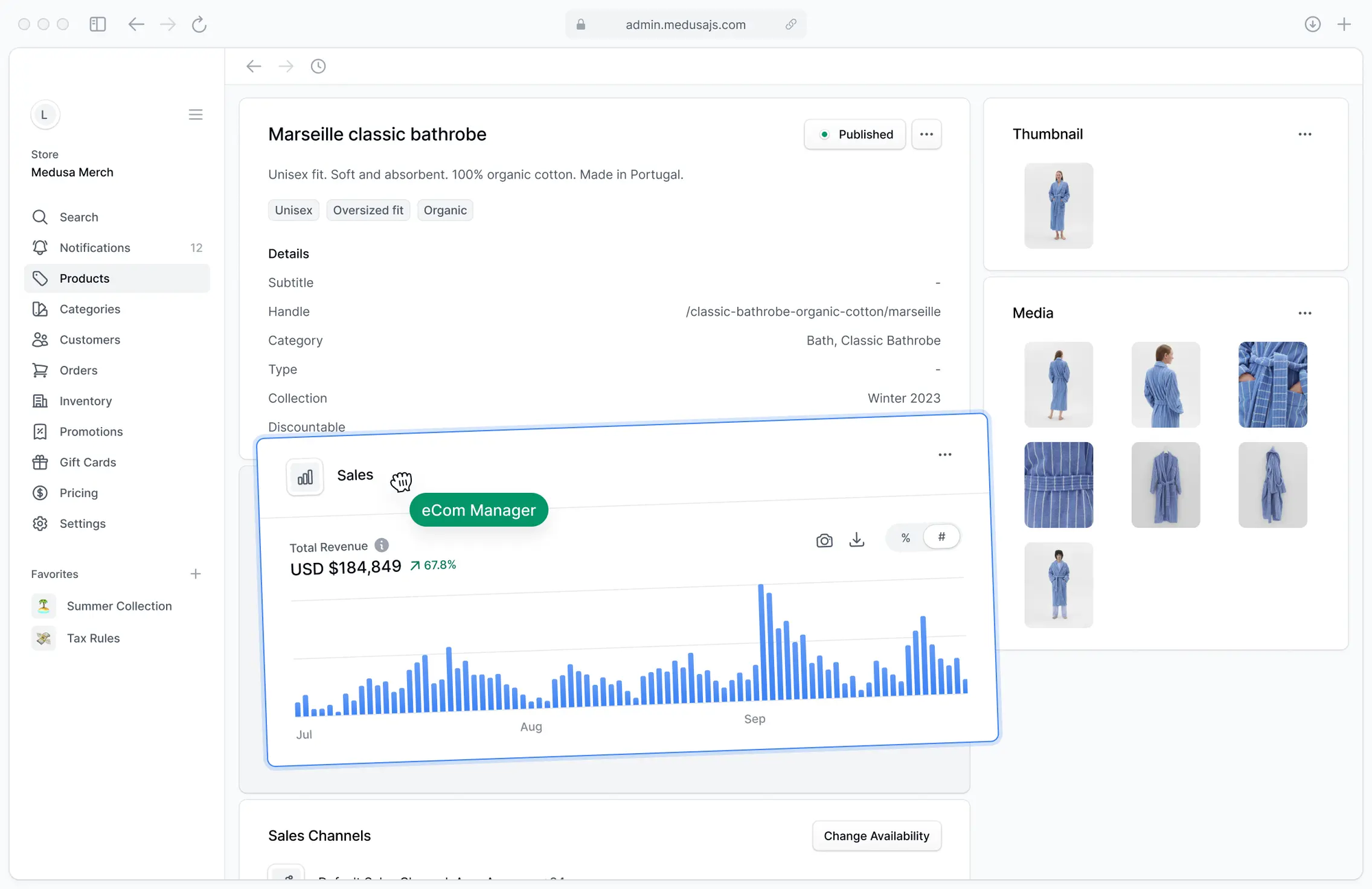
For a webshop we work with Shopify or with Medusa.js. Shopify is the fastest start and you connect it in scale.imora.nl directly through Connectors; that integration is live and reads your orders, products and customers. Medusa.js is the open-source route we host ourselves when you want more control: your own data model, your own server location in the Netherlands or Germany, and no limit on what you can customize. Managing it feels familiar. Below you can see the Medusa dashboard: on the left the navigation with products, categories, customers, orders, stock, promotions and pricing, on the right the product page where you manage variants, prices and stock.
- Choose Shopify if you want to start fast and standard apps cover your needs.
- Choose Medusa.js if you need customization, your own hosting, or a different product model.
- Either way, the order lands in your CRM and the invoice follows automatically.
Automatically scheduling appointments
Under Schedule appointments you set up your booking page. In the free setup you connect your existing cal.com page: you paste your username or the full link, and your booking page appears in your workspace alongside the calendar overview. If you want the calendar to sync with everything else, connect Google Calendar or Outlook Calendar under Connectors. Both of those go through a secure connection in a separate window; after logging in you'll see your upcoming appointments on your overview page. That's also the foundation under the voice agent that books appointments itself: it checks availability and adds the appointment.
- Paste your cal.com link under Schedule appointments and your booking page goes live in your workspace.
- Connect Google Calendar or Outlook Calendar to see your upcoming appointments on the overview.
- Note: the booking link is saved in your own browser, so set it up on each device.
DM automation: WhatsApp and Instagram that answer themselves
This is the part with the biggest time savings, because most questions are the same questions. Under DM automation you'll find a Getting started tab with four steps. First you choose your industry: there are ready-made templates for webshop, hair salon, restaurant, garage, dentist, real estate agent, gym and general business. A template like that fills in your rules, your knowledge base and even a set of test questions in one click. Then you add to the knowledge base with what only you know: opening hours, return policy, prices. Next you test the agent in a sandbox chat, and only once you're happy do you connect a channel.
- Step 1, choose your industry: a template with rules, knowledge and test questions for your field.
- Step 2, fill in your knowledge base: opening hours, prices, returns, whatever only you know.
- Step 3, test your agent: a sandbox chat with a generous daily budget of test messages.
- Step 4, connect a channel: WhatsApp via QR code, or officially through the Meta Cloud API, and Instagram through your Facebook business page.
Read along first, then let go
The most important switch in DM automation is your agent's mode. In draft mode the agent writes the reply but sends nothing: you see the suggestion and hit send yourself. Only once the answers have been solid for a week do you set it live. Either way, you keep seeing every conversation and can take over at any moment. Also use the Evals tab: there you run the test questions from your template against your own knowledge base and see in black and white which questions still go wrong. That's by far the fastest way to get an agent right, and it's the most skipped tab in the whole product.
An agent earns trust through what it demonstrably answers well, not through what it promises. Draft mode plus evals is the difference between hoping and knowing.
Voice agents: the phone that always picks up
Under AI customer service is the widget you put on your site, alongside your own agents and a standing set of default agents for topics like marketing, sales, stock, email and finance. Under Voice agents you manage and test the phone version. The agent picks up, answers the question, looks something up in your systems if needed, books an appointment, and hands off to a human whenever it's really needed. In practice, this is the part that pays off fastest for businesses that get a lot of calls and have little time to answer: garages, clinics, salons and hospitality.
Invoices and forms: what already works today
Two things we get asked a lot, with an honest answer. Invoicing today runs through the connection between your webshop and your CRM or bookkeeping: an order creates the invoice, sends it, and feeds it back into your records. In your workspace, Invoices, Bookkeeping, Documents and Projects already sit ready as cards, but those screens are still under construction; feel free to turn them on, you'll be notified once they go live. Forms work the opposite of what you might expect: instead of a static contact form, we build a flow with logic, like the onboarding you can try on our own site. The answers land directly in your CRM, your email or an n8n workflow.
Marketing: email, newsletter and visibility
Under Marketing and SEO there's a quick scan: you paste a URL and get back what's missing in the title and description, plus an audit and your rankings. For email and newsletters we work with the tool you already have: connect Mailchimp, Brevo or Klaviyo under Connectors, just like Gmail for personal follow-up. The campaigns themselves stay there, but the segments and triggers come from your CRM, so a welcome email or a repeat-purchase message goes out at the right moment on its own. On ads we're clear: we don't have ad management in the product. You connect Google Ads, Meta and TikTok as a data source, so you see your spend and results alongside your revenue, and we write the ad copy with AI. Buying the media itself happens on the platforms themselves or together with us.
Connectors, MCP and CLI: how everything ties together
The Connectors section is the glue. There are three ways a connection comes together, and it helps to know which one you're dealing with. With a key connection you paste an API key from the other system, test the connection and save it; Shopify has a written step-by-step guide for that. With a login connection you click connect with Google or with Meta and simply log in. With a calendar connection a separate window opens where you complete the permission. Beyond that there are skills (ready-made analyses like a CEO report or a restock forecast), MCP servers that let AI assistants actually operate your tools, and CLI connections for the technical work. Not everything is equally far along: some cards are still a demonstration, and that's noted too.
- Paste a key: Shopify, Stripe, Mollie, Mailchimp, Brevo, Klaviyo, Airtable, Notion, n8n, Slack, HubSpot.
- Log in: Google Analytics, Google Ads, Google Drive, Gmail, Google Sheets, Facebook and Instagram.
- Separate window: Google Calendar and Outlook Calendar.
- MCP servers: let an AI assistant actually operate your webshop, calendar or documents instead of just talking about them.
Tips and tricks that make you faster right away
Finally, a handful of things that aren't obvious at a glance, but make the difference between logging in occasionally and actually working with it. The most important one is the AI chat under Ideas: it doesn't just answer, it can also remember. Explicitly ask it to remember something and it'll still be there next time. The search bar is also faster than the navigation, and there are a few limits worth knowing about.
| Trick | How | Why it helps |
|---|---|---|
| Navigate fast | Cmd+K or Ctrl+K | Searches pages, chats, connectors and your memory all at once |
| Let the AI remember | Ask it in the chat to remember something | Decisions and preferences persist between conversations |
| Daily question limit | 10 questions per day per workspace | Applies to the whole workspace, not per person; spend them wisely |
| New line in the chat | Shift+Enter | Ask long questions in one go instead of in pieces |
| Test an agent risk-free | Draft mode in DM | The agent writes, you send, nobody notices a mistake |
| Measure quality | Evals tab | See which questions go wrong before your customers notice |
| CRM at full size | CRM, then Workspace | Full screen and automatically logged in, no second password |
| Spot a demo | Watch for the Demo data label | So you instantly know if a screen shows real numbers |
Small actions with a big effect in scale.imora.nl.
In short: starting small works better than doing it all at once
Turn on one product, work through the checklist, and let it run for a week before turning on the next. Start with the channel where most questions come in right now: if that's the phone, take the voice agent; if it's WhatsApp, start with DM automation; if you don't have a decent site yet, that's always step one. And leave everything in draft mode the first week, so you can see what would have been sent. Stuck, or just want to talk through what pays off fastest in your situation? Book a free introductory call and we'll take a look together.